


Google Chrome is a powerful browser, but it’s also known for consuming a lot of system memory. This often causes computers to lag, especially when multiple tabs or extensions are in use. If you’ve ever wondered why your device slows down whenever Chrome is running, the answer lies in how Chrome handles background processes and memory distribution.
Fortunately, there are several effective techniques to optimize Chrome’s performance and lighten its memory footprint. Whether you’re a casual user or someone who relies on Chrome daily, applying the proper adjustments can result in noticeable improvements. This article offers a comprehensive guide to practical solutions that can help reduce Chrome’s RAM usage and keep your system running more efficiently.
Use Chrome’s Built-In Task Manager
Monitor Resource Usage in Real Time
Chrome includes a built-in Task Manager that displays memory consumption for each tab, extension, and background process. This tool helps pinpoint which elements are draining your resources.
To use Chrome Task Manager:
- Open Google Chrome on your desktop.
- Press Shift + Esc to launch Chrome’s Task Manager.
- Review the list to identify tabs or extensions that use a high amount of memory.
- Please select the one you want to pause and click End Process to stop it temporarily.
This feature enables you to manage system resources more effectively by targeting resource-intensive items without compromising your browsing experience.
Disable or Remove Extensions That Are Not in Use
Streamline Chrome for Better Speed
Extensions add functionality to Chrome but also consume memory, even when the browser is inactive. Removing or disabling extensions you rarely use can significantly improve browser responsiveness.
Steps to manage your extensions:
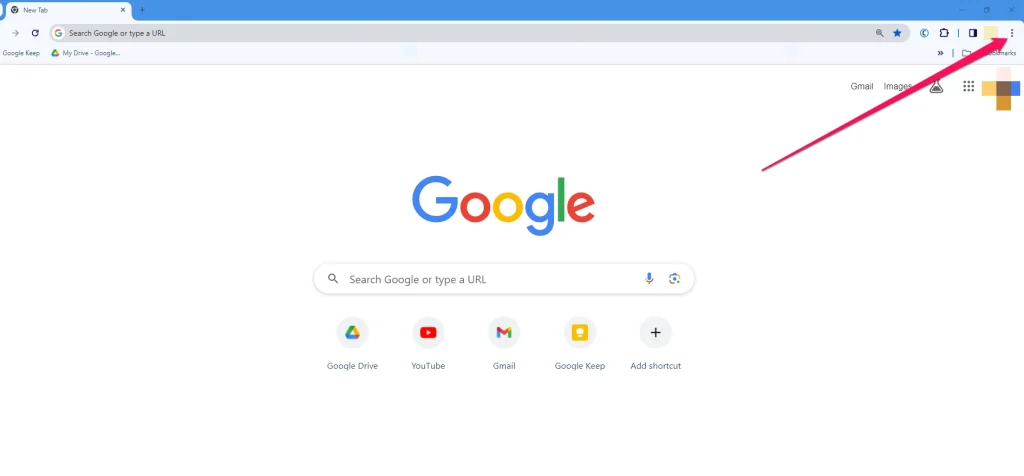
- Click the three-dot menu at the top-right corner of Chrome.
- Navigate to Extensions > Manage Extensions.
- Review the installed extensions.
- Use the toggle switch to deactivate any that aren’t needed, or click Remove for permanent deletion.
Some extensions continuously run scripts or connect to external services. Removing these can lower RAM usage and reduce background activity.
Organize Tabs or Close Unused Ones
Simplify Your Browsing Workspace
Each open tab uses system memory. Over time, an excessive number of tabs can slow down performance. Instead of keeping every tab open, group or manage them more efficiently.
Here’s how you can manage your tabs:
- Group Tabs: Right-click on a tab, select Add tab to new group, then name and color it for easy identification.
- Bookmark Tabs: Save important pages by right-clicking the tab and selecting “Bookmark all tabs” or bookmarking them individually.
- Close Idle Tabs: Periodically scan open tabs and close those that are no longer needed.
Grouping and bookmarking tabs help maintain a tidy browser while keeping applicable content accessible without consuming active memory.
Enable Hardware Acceleration
Let Your GPU Handle Visual Tasks
Hardware acceleration enables Chrome to offload specific tasks from the CPU and RAM to the GPU, thereby improving performance. This helps offload graphical rendering and enhance browser performance.
To enable hardware acceleration:
- Click the three-dot menu in Chrome.
- Go to Settings > System.
- Turn on Use graphics acceleration when available.
- Restart Chrome by closing and reopening the browser.
This setting is especially beneficial if your computer has a dedicated graphics processing unit (GPU). It enables Chrome to handle complex visual content more efficiently.
Control Chrome’s Background Processes
Minimize Activity After Closing Chrome
Chrome can continue running background processes even after closing all tabs. These processes may include extensions, site notifications, or services that continue to consume memory.
Steps to limit background activity:
- Open Chrome and access the three-dot menu.
- Go to Settings > System.
- Turn off. Continue running background apps when Google Chrome is closed.
This prevents Chrome from using system resources when it’s not in active use, which can help free up RAM and improve overall system responsiveness.
FAQ’s
Why does Chrome use so much RAM?
Chrome isolates each tab, extension, and plugin into separate processes. This improves stability but also increases memory usage, especially with many tabs or active extensions.
How many tabs are too many in Chrome?
While Chrome can handle dozens of tabs, system performance depends on the amount of available RAM. For better performance, try to keep the number of active tabs under 10 and use bookmarks or tab groups.
Does clearing the cache help with RAM usage?
Clearing the cache doesn’t directly reduce RAM usage. However, it can enhance performance by freeing up storage and reducing loading demands on frequently visited sites.
Are Chrome extensions always active?
Many extensions run background scripts even when not visibly active. Disabling or removing them can reduce memory load and background activity.
What is the best Chrome alternative with low RAM usage?
Browsers like Microsoft Edge, Firefox, or Opera are considered lighter in terms of resource usage. However, optimizing Chrome, as described above, can significantly improve its performance.
Conclusion
Chrome’s memory usage can be managed effectively with a few adjustments. Organize open tabs, disable or remove extensions you rarely use, and enable hardware acceleration to shift visual tasks to your GPU. Limiting background processes also helps free up system resources. These simple tweaks improve Chrome’s performance without requiring advanced technical skills. With a cleaner, optimized setup, your browser runs faster and more efficiently, allowing for a better overall experience—especially on devices with limited RAM or older hardware configurations.