

Managing emails and calendars efficiently is essential in today’s fast-paced work environment. One powerful yet underutilized feature in Microsoft Outlook is the ability to convert an email directly into a meeting invite. This not only saves time but also enhances productivity by eliminating the need to switch between different tasks and applications.
Whether you’re collaborating on a project, responding to a client, or organizing a team meeting, this feature can streamline your workflow. In this guide, you’ll discover how to turn emails into actionable calendar events in Outlook using easy and effective techniques.
Understanding Outlook’s Built-in Meeting Tools
Difference Between an Email and a Meeting Invite
An email serves as a communication tool for sending messages, attachments, or notifications. A meeting invite, on the other hand, includes scheduling information such as date, time, location, and attendees. When you convert an email into a meeting invite, you’re transforming static information into a planned and interactive event.
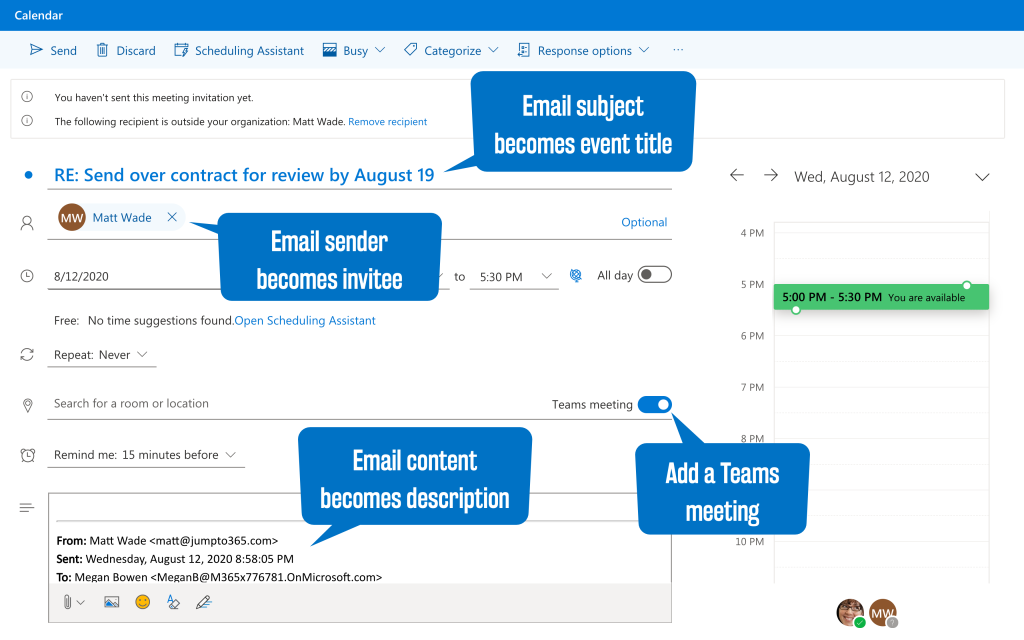
This conversion allows you to retain the context of the original email while seamlessly creating a calendar entry. The subject line, body content, and recipients from the email are carried over, making the transition efficient and contextually relevant.
Advantages of Converting Emails to Meetings
- Saves time switching between mailbox and calendar
- Keeps original conversation in context
- Reduces chances of missing follow-ups
- Automatically includes email recipients as invitees.
- Helps in organizing structured discussions
This built-in functionality can significantly enhance communication and coordination among teams.
Step-by-Step Process to Convert an Email into a Meeting Invite
Using the Drop Method
One of the easiest ways to convert an email into a meeting invite is by using Outlook’s drag-and-drop feature. Follow these steps:
- Open Microsoft Outlook
- Select the email you want to convert.
- Drag the email to the Calendar icon in the navigation pane.
- A new meeting window will appear with email content automatically included.
- Set the date, time, and location for the meeting.
- Review the invite and send it to the participants.
This method is fast and keeps everything intact. You don’t need to copy and paste anything manually.
Using the “Meeting” Button in the Email Toolbar
For those who prefer toolbar options, Outlook also provides a “Meeting” button:
- Open the email you wish to convert.
- On the toolbar, click the Meeting button under the Respond group.
- Outlook creates a new meeting invite with the email attached.
- Add attendees, select a time, and modify details if needed.
- Click Send
This approach works well when responding directly from an email thread.
Creating a Meeting from the Calendar View
Alternatively, you can initiate the process from the calendar:
- Click on the Calendar icon in Outlook.
- Create a new meeting.
- Manually copy the relevant email content or drag the email into the meeting window.
- Add attendees, time, and other meeting details.
- Send the invite
This method gives you more control over meeting customization while still incorporating email content.
Tips for Making Your Meeting Invites More Effective
Add a Clear Subject and Purpose
When converting emails into invites, update the subject line to reflect the meeting’s objective. This helps attendees prepare and prioritize. Include keywords that indicate purpose, such as “Project Update” or “Client Discussion.”
Set Appropriate Time and Duration
Avoid scheduling back-to-back meetings. Use Outlook’s scheduling assistant to find time slots where all participants are available. Consider different time zones if attendees are located in various regions.
Include Agenda and Reference Material
Use the meeting body to paste relevant discussion points, agendas, or links from the original email. Attach supporting documents if needed. Providing these details in advance increases engagement and productivity.
Use Categories and Reminders
Tag the meeting with a color-coded category and set reminders. This helps you stay organized and ensures timely participation from all attendees.
Send Follow-Ups and Updates
If changes occur, use Outlook to send updated invites or additional notes. Keeping communication centralized in the calendar event improves coordination and accountability.
FAQ’s
Can attachments from the email be included in the meeting invite?
Yes, attachments in the original email are automatically carried over when using the drag-and-drop or “Meeting” button methods.
Will the email’s recipients be added to the meeting invite automatically?
Yes, all recipients from the original email are typically added as required or optional attendees. You can modify this list manually.
Is this feature available in the web version of Outlook?
Yes, Outlook on the web supports similar functionality, although some features may vary slightly depending on the version and browser.
Can I use this method on shared mailboxes or delegated calendars?
Yes, provided you have the appropriate permissions. You can convert emails from shared mailboxes and schedule meetings on behalf of others.
What happens if I convert an email thread with multiple replies?
Outlook includes the full email thread in the meeting invite body, helping participants understand the full context.
Conclusion
Converting an Outlook email into a meeting invite is a powerful way to streamline communication and boost efficiency. Whether using drag-and-drop, toolbar commands, or calendar view, each method preserves the context and content of the original message. Mastering this feature can improve collaboration and reduce the risk of missed follow-ups or miscommunication.