

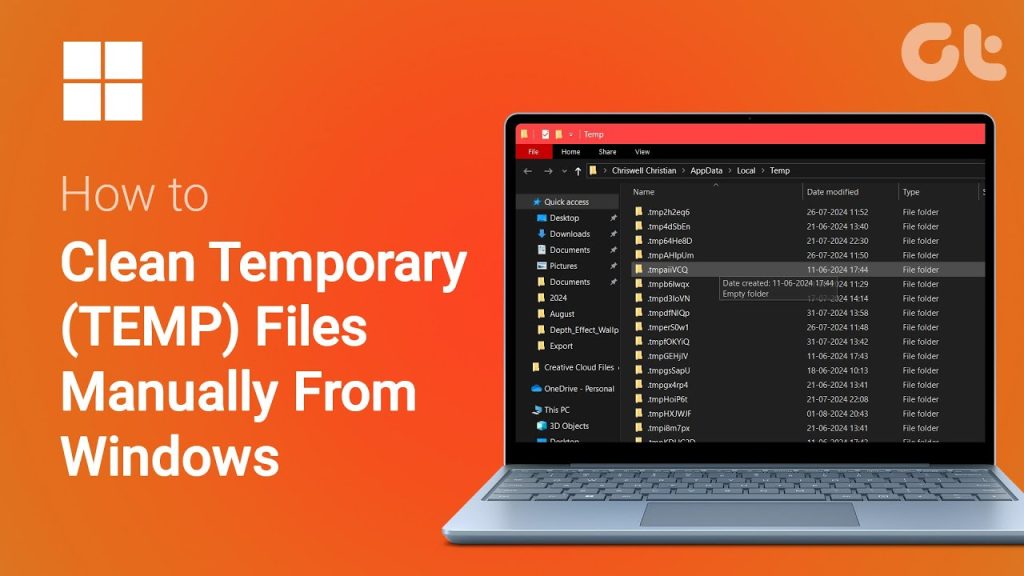
Windows is designed to be efficient, responsive, and adaptable, but over time, it quietly stores a surprising number of temporary files in hidden corners of your system. These files are usually helpful for maintaining smooth operation, but many of them quickly outlive their usefulness and continue taking up valuable storage space without your knowledge.
From installation leftovers to cached thumbnails, these hidden files grow in size every day. If your PC feels sluggish or your storage is mysteriously shrinking, the real culprits might be these temporary files. Reclaiming your disk space doesn’t require advanced tools just a few simple steps to clean specific folders can free up gigabytes and restore your computer’s performance and speed.
User Temp Folder (%temp%)
What It Does
The User Temp folder is a personal dumping ground where Windows and other applications store files created during installations, updates, log generation, and crashes. These files are intended to be deleted automatically, but they often remain in place long after they’ve served their purpose.
How to Clean It
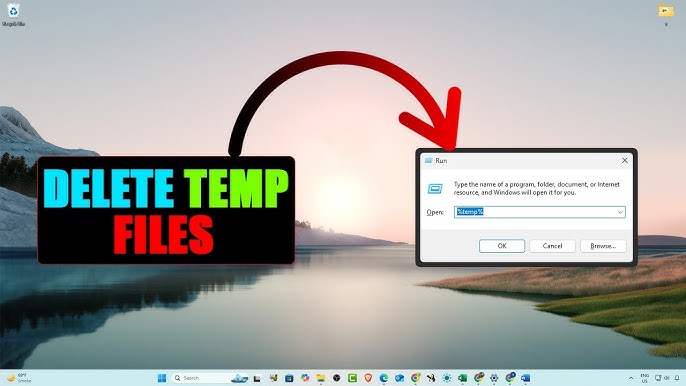
- Press Win + R
- Type %temp% and press Enter.
- Select all files with Ctrl + A
- Press Delete and skip any files currently in use.
Tips for Efficiency
A system reboot before cleaning helps unlock files that would otherwise be resistant to deletion. These are non-essential files, and removing them won’t impact your programs.
System Temp Folder
Hidden System Debris
The System Temp folder differs slightly in that it houses temporary files created by Windows system-level processes rather than user applications. Over time, it can swell in size, holding remnants from updates and installations.
Cleanup Method
- Open the Run dialog with Win + R
- Type temp and press Enter.
- Navigate to C:\Windows\Temp
- Select and delete files using admin rights if prompted.
Regularly cleaning this Folder helps keep your system running smoothly by removing unnecessary clutter from outdated system files.
Software Distribution Folder
Why It Fills Up
Windows stores update packages and logs here before and after installation. Especially after multiple update cycles, this Folder can hoard outdated files that never get automatically deleted.
How to Clear It
- Navigate to C:\Windows\SoftwareDistribution\Download
- Delete the contents inside the Download folder only.
- Avoid touching the main Software Distribution folder.
Ensure all updates are installed, and restart your computer before performing the cleanup for maximum effectiveness.
Recycle Bin
Not Truly Deleted
The Recycle Bin acts as a fail-safe by storing deleted items before they’re permanently removed. While helpful, this feature can quietly consume a large amount of disk space if left unattended.
Reclaim the Space
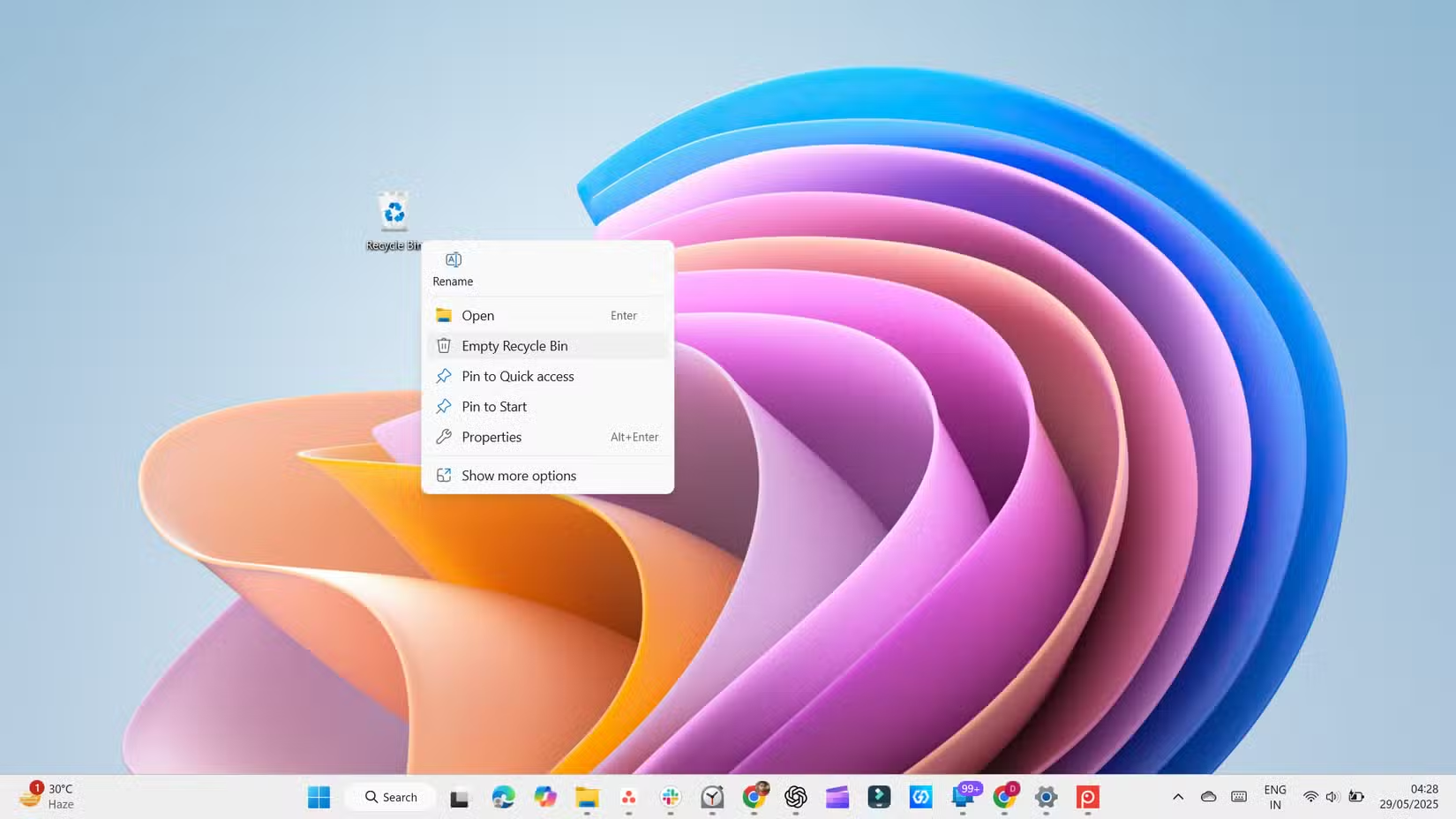
- Right-click the Recycle Bin on your desktop.
- Select Empty Recycle Bin
- Confirm deletion
You can also set Windows to auto-clear the bin periodically through Storage Sense in system settings.
Windows. old Folder
A Backup You Might Not Need
After upgrading to Windows, a complete backup of the previous version is stored in the Windows. Old Folder. While useful for rollback, most users never touch it again.
Deletion Process
- Go to Settings > System > Storage
- Select Temporary files
- Tick Previous Windows installation(s)
- Click Remove files
Before removing, ensure you’re satisfied with the new Windows version, as this action turns off rollback options.
Delivery Optimization Files
Cached Update Files
These are leftover bits of Windows Update packages used to help deliver updates to other devices. While efficient in theory, they often outstay their welcome post-update.
Remove Them Easily
- Head to Settings > System > Storage
- Choose Temporary files
- Check Delivery Optimization Files
- Click Remove files
These files are safe to delete and will be recreated when necessary.
Low-Impact File Folders Worth Clearing
Recent Items Folder
This Folder stores shortcuts to recently opened files, which can clutter your system over time.
Steps to Clean:
- Press Win + R, type shell: recent, press Enter
- Select all items and delete
These are only shortcuts, not actual files, so there is no risk involved.
Downloaded Program Files
This legacy folder once stored Java applets and ActiveX controls for Internet Explorer, both of which are obsolete.
Steps to Clean:
- Navigate to C:\Windows\Downloaded Program Files
- Delete any contents you find
You likely won’t see anything useful here anymore, and it’s safe to empty.
Thumbnail Cache
Thumbnails help you preview images quickly, but they pile up silently in the background, taking up unnecessary space.
Steps to Clean:
- Go to Settings > System > Storage
- Select Temporary files
- Tick Thumbnails and hit Remove files.
Deleting the thumbnail cache only removes previews, which Windows can recreate instantly when needed.
FAQ’s
Is it safe to delete files from the %temp% folder?
Yes, it’s completely safe. These files are temporary and non-essential. Windows will regenerate any required files when needed.
What happens if I delete the contents of the Software Distribution folder?
Deleting contents from the Download subfolder clears old updates without damaging your system. Avoid deleting the entire Folder.
Why should I manually clear the Recycle Bin?
If you don’t empty the Recycle Bin, deleted files continue to occupy storage space. Manual cleanup ensures space is actually reclaimed.
Can I delete the Windows? Old Folder right after upgrading?
Yes, but only if you’re sure you don’t want to return to the previous version. It’s Irreversible once removed.
Will deleting Delivery Optimization Files affect my updates?
No, these files are no longer needed once updates are installed. New ones will be downloaded if required later.
Conclusion
Cleaning temporary Windows folders is an easy yet highly effective way to free up storage and boost system performance. With just a few routine checks and deletions, you can recover several gigabytes of space without affecting system stability or functionality. Whether you’re removing thumbnail caches, clearing out the Software Distribution folder, or emptying your Recycle Bin, consistent cleanup makes a noticeable difference in how smoothly your PC runs and how much space you can reclaim for things that truly matter.