

Getting your hands on a new phone is always thrilling—especially when it’s the stylish and powerful Samsung Galaxy Z Flip6. This foldable device isn’t just about premium design and top-tier specs; it’s packed with features that unlock smarter, faster, and more creative usage.
Whether you’re exploring Galaxy AI or customizing the unique Cover Screen, knowing the right tools can elevate your mobile experience. Here’s a curated list of top tips and tricks designed to help you make the most of your Z Flip6’s cutting-edge features.
Make Conversations Easier With Galaxy AI Interpreter
The Galaxy Z Flip6 comes equipped with advanced Galaxy AI, and the Interpreter tool stands out as a must-use feature. This real-time language translator allows you to have smooth conversations in foreign languages without typing or pausing.
How to Use the Interpreter Feature
- Launch the Interpreter app.
- Tap the arrow icon to download your preferred language.
- Hit the mic icon and begin speaking.
- Flip the screen so the translated text is visible to the other person.
It’s perfect for travel, business, or multilingual chats and improves accessibility like never before.
Turn Doodles Into Art With Sketch to Image
Galaxy AI doesn’t stop at communication—it brings your creativity to life. The Sketch to Image tool allows you to transform rough doodles into visually rich images.
Creating Artwork Using Galaxy AI
- Open a photo from the Gallery.
- Tap the AI icon (third from the left)
- Draw your sketch or add to the image.
- Tap “Generate” and wait for the enhancement to be applied.
You can also doodle in Samsung Notes and use the AI to add details or colors. From crowns in birthday photos to balloons at parties, creativity meets technology on your screen.
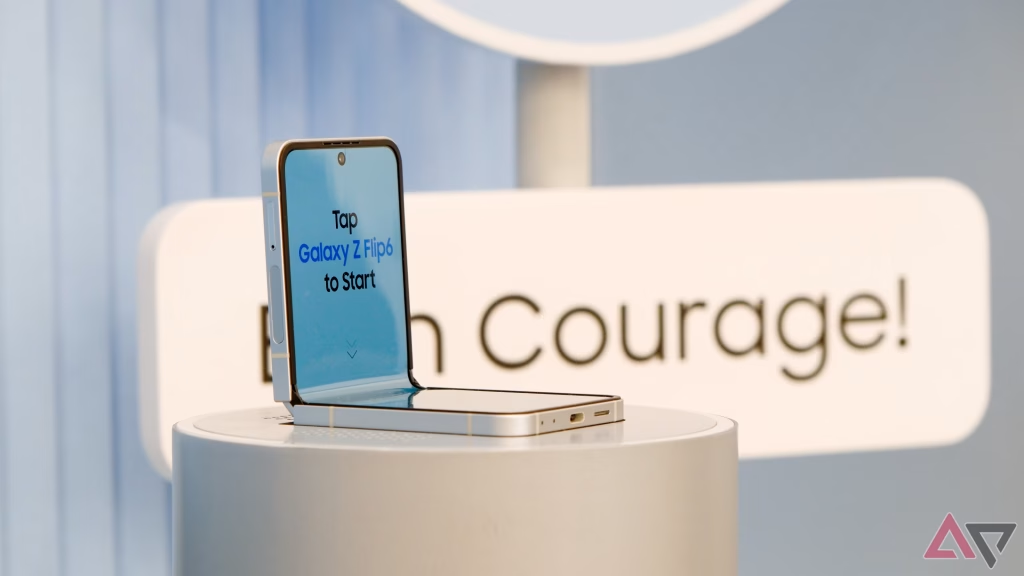
Optimize Your Cover Screen for Maximum Utility
The Cover Screen of the Galaxy Z Flip6 isn’t just for notifications—it’s a dynamic tool for productivity and personalization.
Customize Widgets on the Cover Display
You can select and organize the widgets that matter most to you.
- Navigate to Settings > Cover screen > Widgets.
- Select and rearrange widgets such as Contacts, Weather, or Music.
- Arrange the layout based on your daily needs.
This makes multitasking efficient and adds a touch of personal flair to your device.
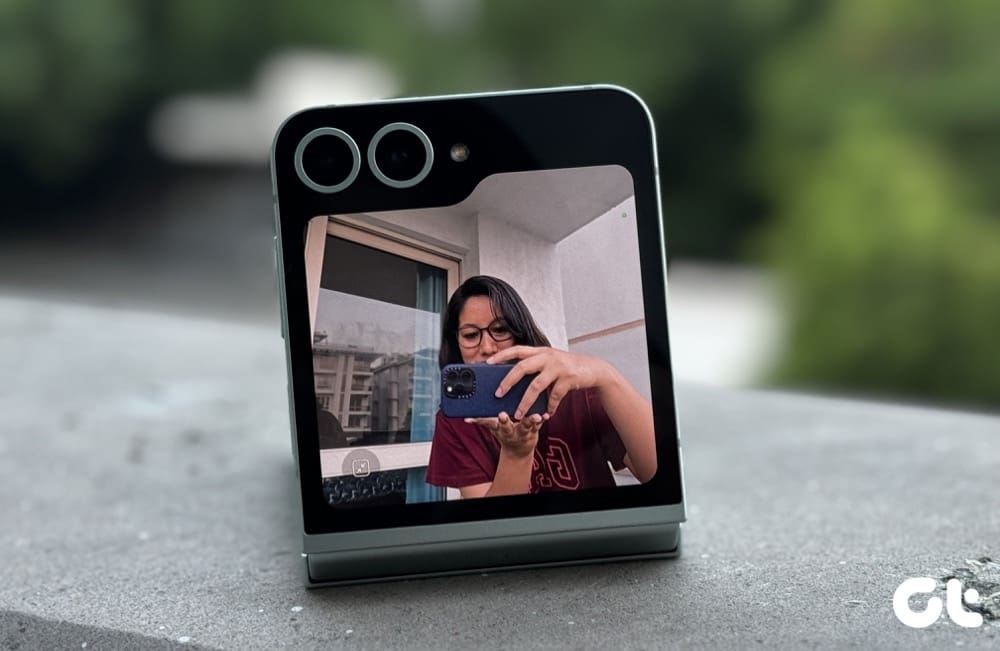
Use Cover Screen Preview for High-Quality Selfies
Instead of relying on the internal selfie camera, the Galaxy Z Flip6 allows you to utilize its powerful rear camera setup for capturing perfect self-portraits.
Accessing Cover Screen Preview
- Open the Camera app
- Tap the small square icon in the top-right
- The preview shows up on the Cover Screen.
Frame your shot with ease and get wide-angle selfies or group shots using the best optics your phone has to offer.
Add Essential Apps to the Cover Screen
With its expanded Cover Screen, the Galaxy Z Flip6 allows you to run a selected list of apps right from the front—no need to unfold the phone for quick tasks.
Steps to Enable Apps on Cover Screen
- Go to Settings > Advanced features > Labs > Allowed apps on the cover screen.
- Toggle on desired apps like Google Maps, Netflix, or Messages
This makes it easier to check directions, respond to texts, or catch up on content, all from a smaller screen.
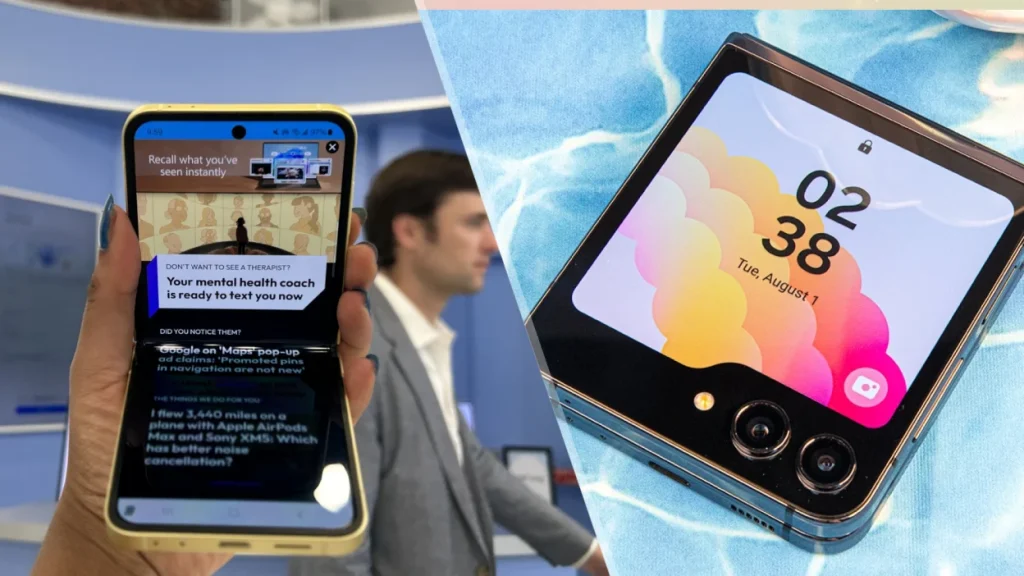
Create Collages and GIFs Without Third-Party Apps
Skip downloading apps filled with ads and instead use the built-in collage and GIF maker that comes with your Z Flip6.
How to Make a Collage
- Open the Gallery
- Select multiple images
- Tap on Create > Collage.
- Pick your frame and save
This tool is excellent for sharing multiple photos in one post or telling a short story with visuals.
Adjust Intelligent Optimization for Faster Photos
The Intelligent Optimization feature enhances photos by default, but it can slow down the process when snapping pictures quickly.
Tweaking Photo Optimization
- Head to Camera> Settings > Intelligent Optimization
- Select Minimum to speed up capture time.
This is ideal when you’re capturing spontaneous moments or quick bursts of action without sacrificing image quality too much.
Capture Instant Videos With a Simple Gesture
When moments happen fast, switching camera modes can waste valuable seconds. The Galaxy Z Flip6 solves this with a built-in shortcut for quick video recording.
How to Record Videos Instantly
- Long-press the Shutter button in Photo mode.
- The Camera instantly switches to Video mode and starts recording.
This allows you to catch real-time action instantly, whether it’s your pet being adorable or a friend pulling off a great prank.
FAQ’s
Can I use any app on the Galaxy Z Flip6’s Cover Screen?
No, the phone allows only a select number of apps to run on the Cover Screen, including Maps, Netflix, and Messages.
Does the Interpreter tool require an internet connection?
You can download languages for offline use, though real-time accuracy improves when online.
How can I improve the quality of selfies using the Flip6?
Use the Cover Screen Preview and the primary rear cameras to capture higher-quality selfies.
Is Sketch to Image only for photos?
No, it also works with doodles drawn in Samsung Notes, making it a fun tool for creating new images.
Can I disable Intelligent Optimization permanently?
Yes, navigate to Camera settings and select the minimum optimization option to reduce its activity.
Conclusion
The Samsung Galaxy Z Flip6 is more than just a stylish foldable—it’s packed with powerful tools that boost your productivity, enhance creativity, and improve convenience. These features make daily tasks easier, photo-taking smoother, and personalization more enjoyable. Mastering these tricks ensures a more innovative and richer smartphone experience.